Plugins
1. Overview
Plugins are external code packages that extend OCCS with additional functionality beyond the system’s core, built-in features. A Plugin is imported into OCCS as a .zip package and, once installed, can be enabled, disabled, updated, or removed by a Super Admin from the Plugins dashboard.
Each Plugin is self-contained and adds a specific capability to the system. For example, the Sms Provider adds the ability to send SMS notifications based on call results.
2. Available Plugins
| Plugin | Description |
|---|---|
Sends SMS notifications using a configurable template, triggered by specific result codes. |
|
This plugin lets OCCS book callbacks and meetings straight onto an agent’s calendar. |
3. Managing Plugins
From the Plugins screen (Plugins in the left-hand navigation of the Super Admin dashboard), a Super Admin can:
-
Import a new plugin from a
.zipfile -
Enable / Disable an installed plugin using the toggle switch
-
Update an installed plugin to a newer version by uploading a new
.zipfile -
Delete an installed plugin using the bin icon
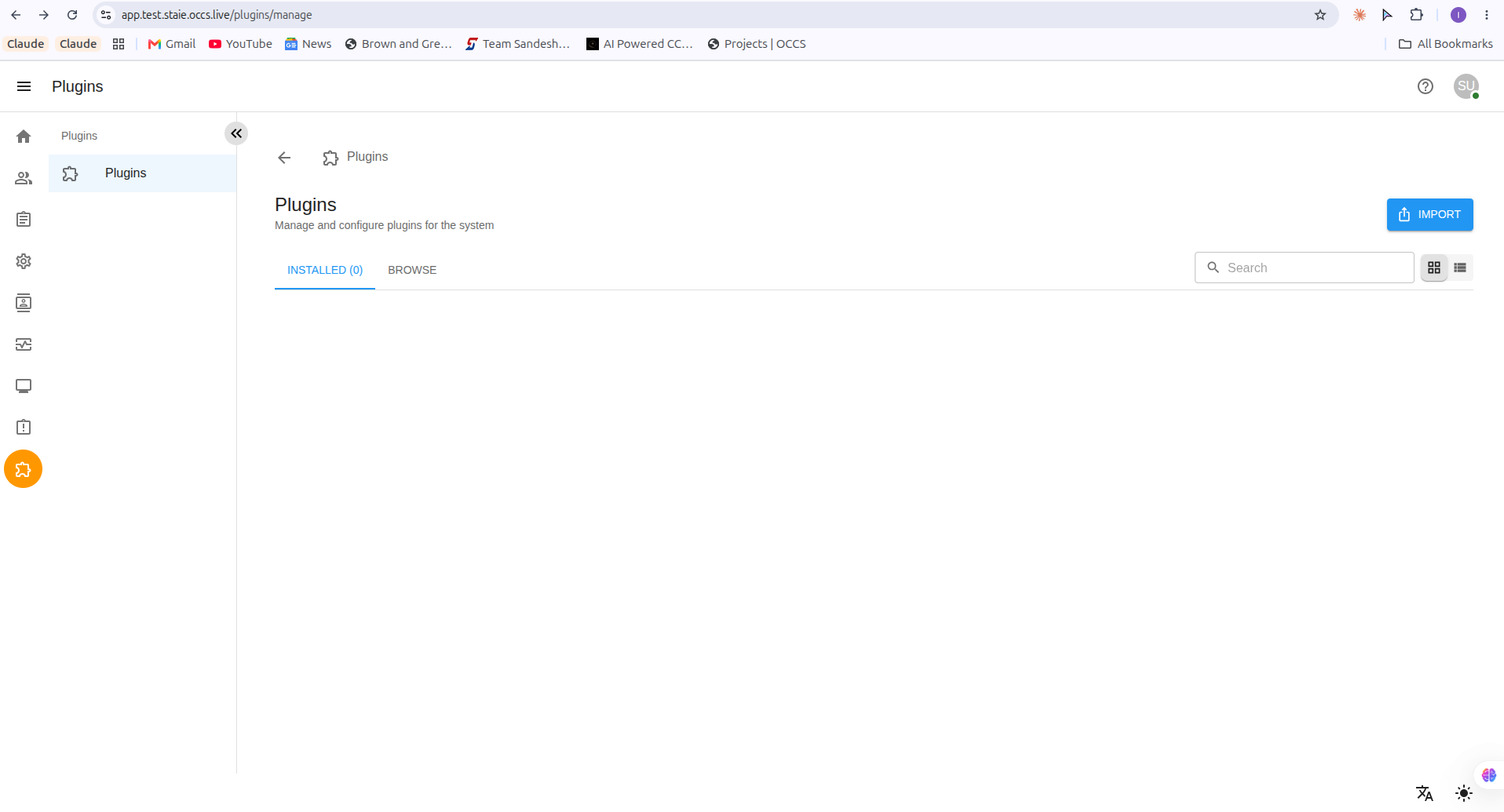
| Only users with the Super Admin role can access the Plugins section. |
4. Steps to Install a Plugin
Follow these steps to install and enable a plugin:
-
Log in as Super Admin.
Sign in to OCCS using a Super Admin account.
-
Open the Plugins section.
Click the Plugins icon on the left-hand navigation of the Super Admin dashboard.
-
Import the plugin.
Click the IMPORT button in the top right corner of the Plugins screen.
-
Upload the plugin package.
Drag and drop the provided plugin
.zipfile into the upload area (or click to upload), then click SAVE.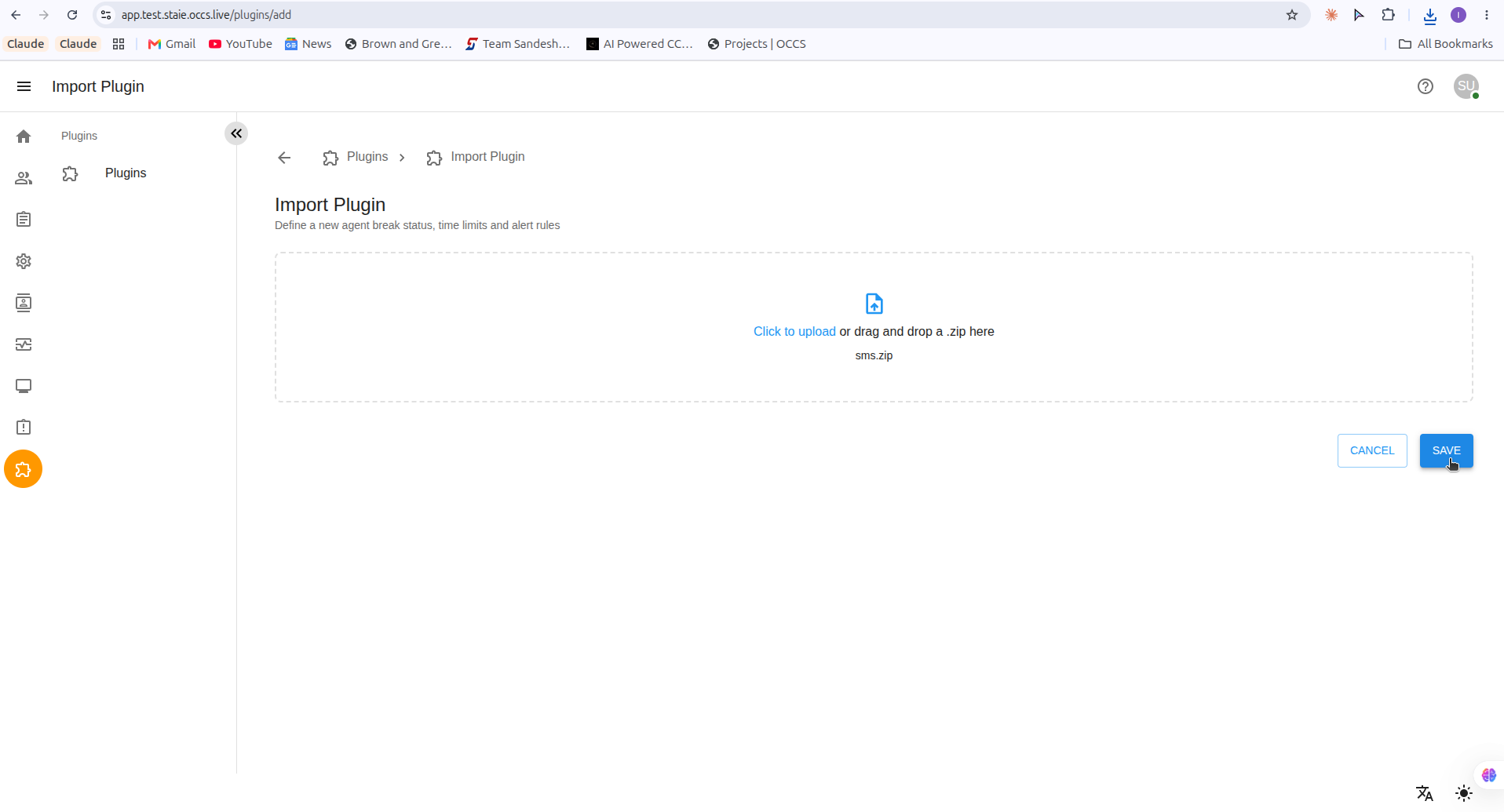
-
Enable the plugin.
After saving, the plugin appears in the Installed list. Turn on the toggle switch next to the plugin name to enable it.
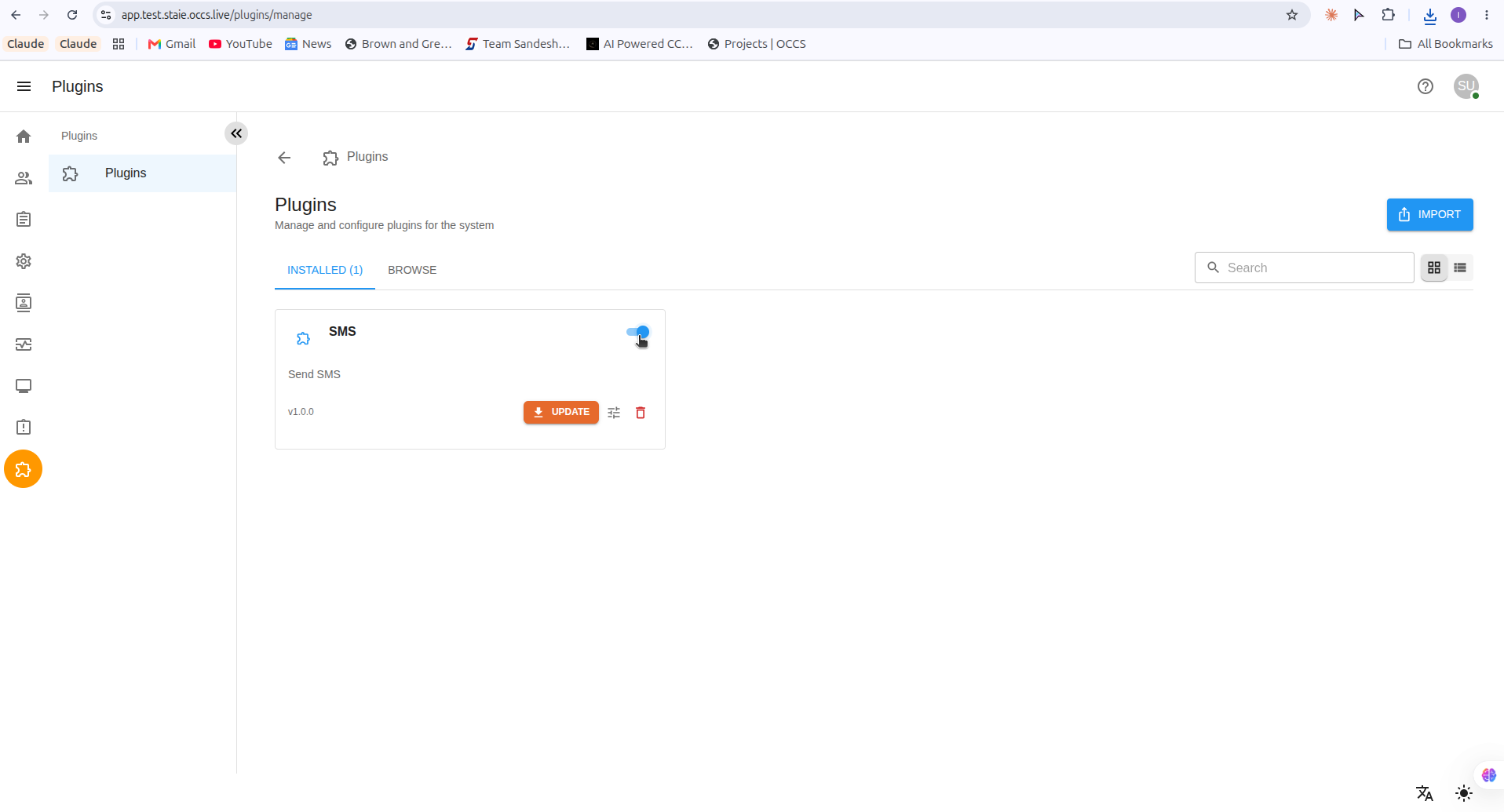
Once enabled, the plugin becomes active and performs its configured functionality.