Google Calendar
1. Overview
The Google Calendar plugin lets OCCS book callbacks and meetings straight onto an agent’s calendar. When a clerk receives or makes a call to a client, OCCS shows the clerk’s existing meetings and can create a new calendar event by triggering a result code.
Google Calendar is an external plugin (see Plugins) that must be imported and enabled before it can be configured.
2. Prerequisites
Before configuring Google Calendar, make sure that:
-
You are logged in as Super Admin.
-
The Calendar
.zipfile has been imported in the Plugins module and the Calendar plugin is enabled.
3. Steps to Add a Calendar Account
-
Open Google Calendar settings.
Go to Global Settings and select Google Calendar.
-
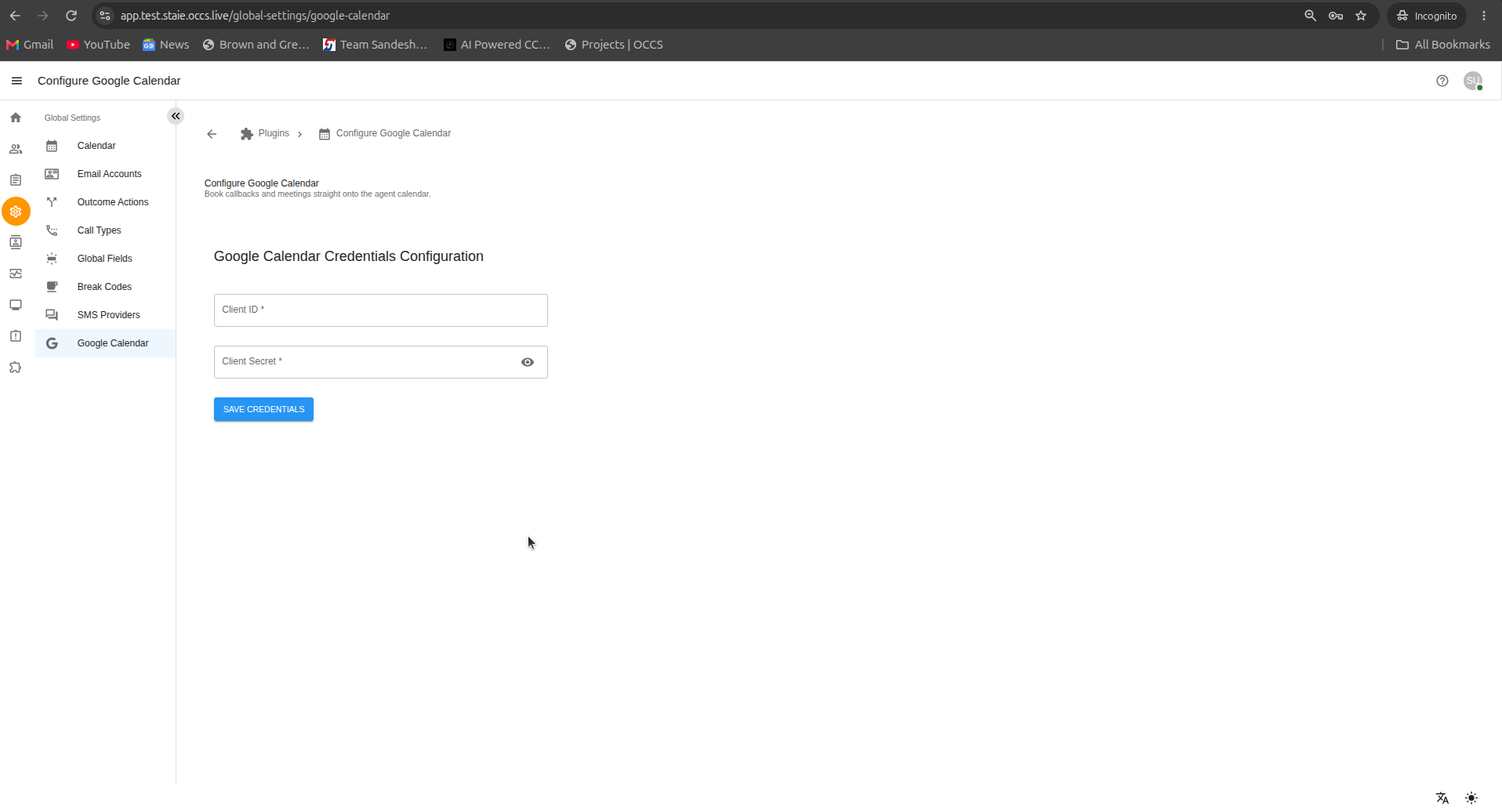
Enter your credentials.
Fill in the Client ID and Client Secret, then click SAVE CREDENTIALS.
-
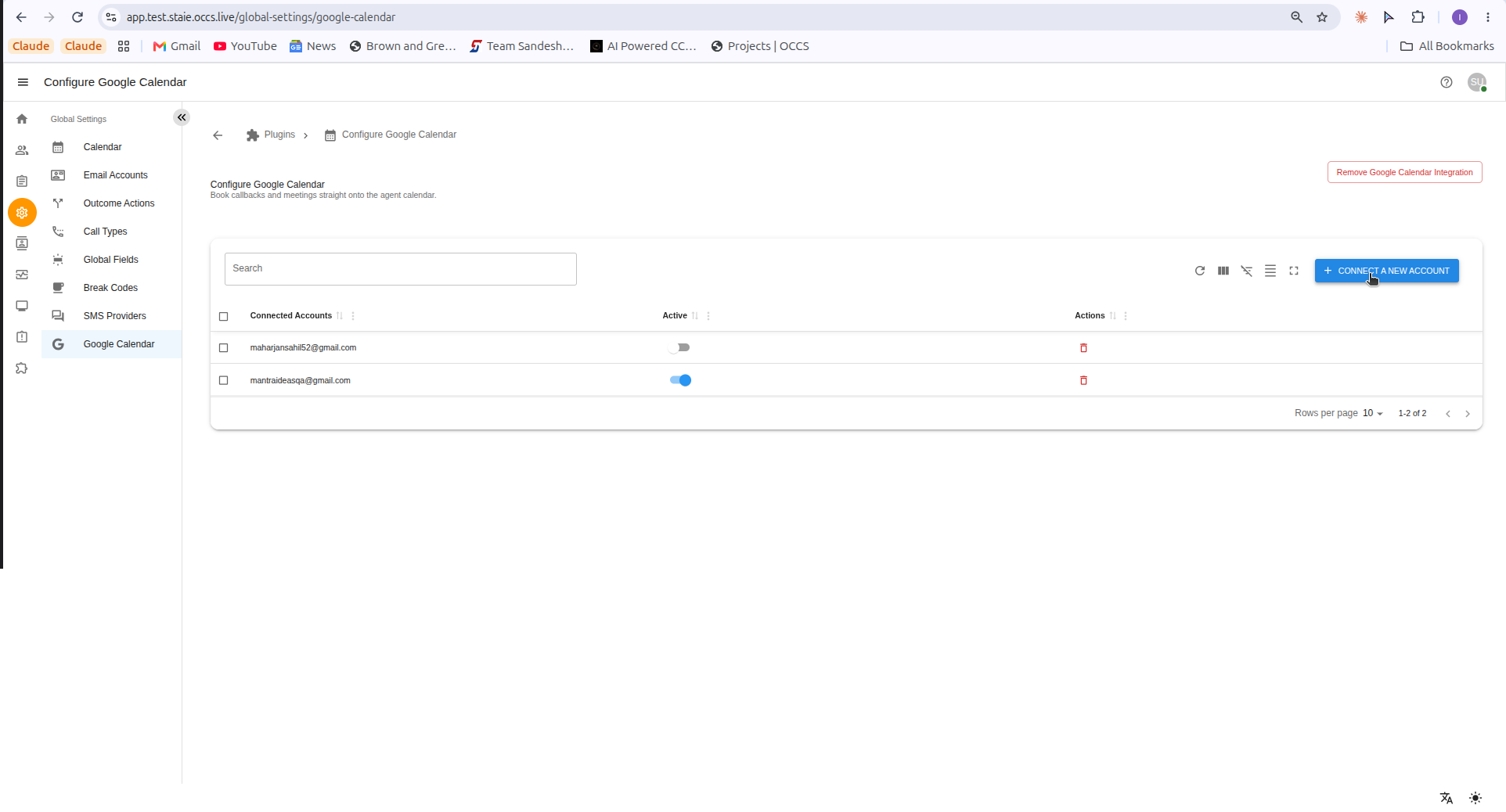
Connect a new account.
Click + CONNECT A NEW ACCOUNT.
-
Sign in with a Google account.
Sign in using a Google account that is verified by
occs.live.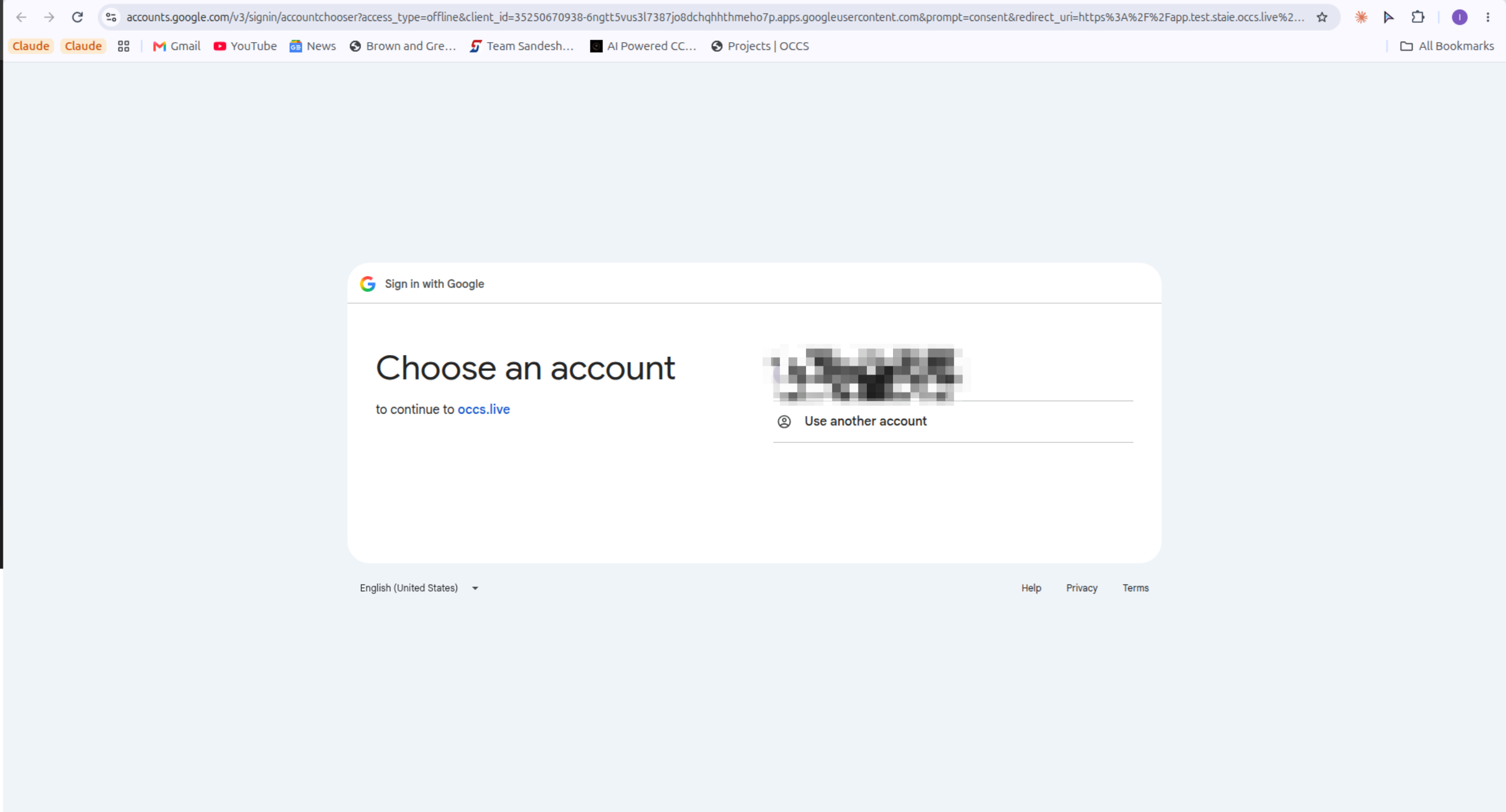
-
Enable the account.
Turn on the Active toggle for the connected account.
|
Only one Google Calendar account can be active at a time. Enabling the Active toggle for one account automatically means all other connected accounts are disabled. |
4. Removing a Calendar Account
To remove a single connected account:
-
Click the desired account row.
-
Click the Remove action button (bin icon) at the bottom right.
|
Clicking Remove Google Calendar Integration removes all connected accounts, not just one — use this only when you want to disconnect Google Calendar entirely. 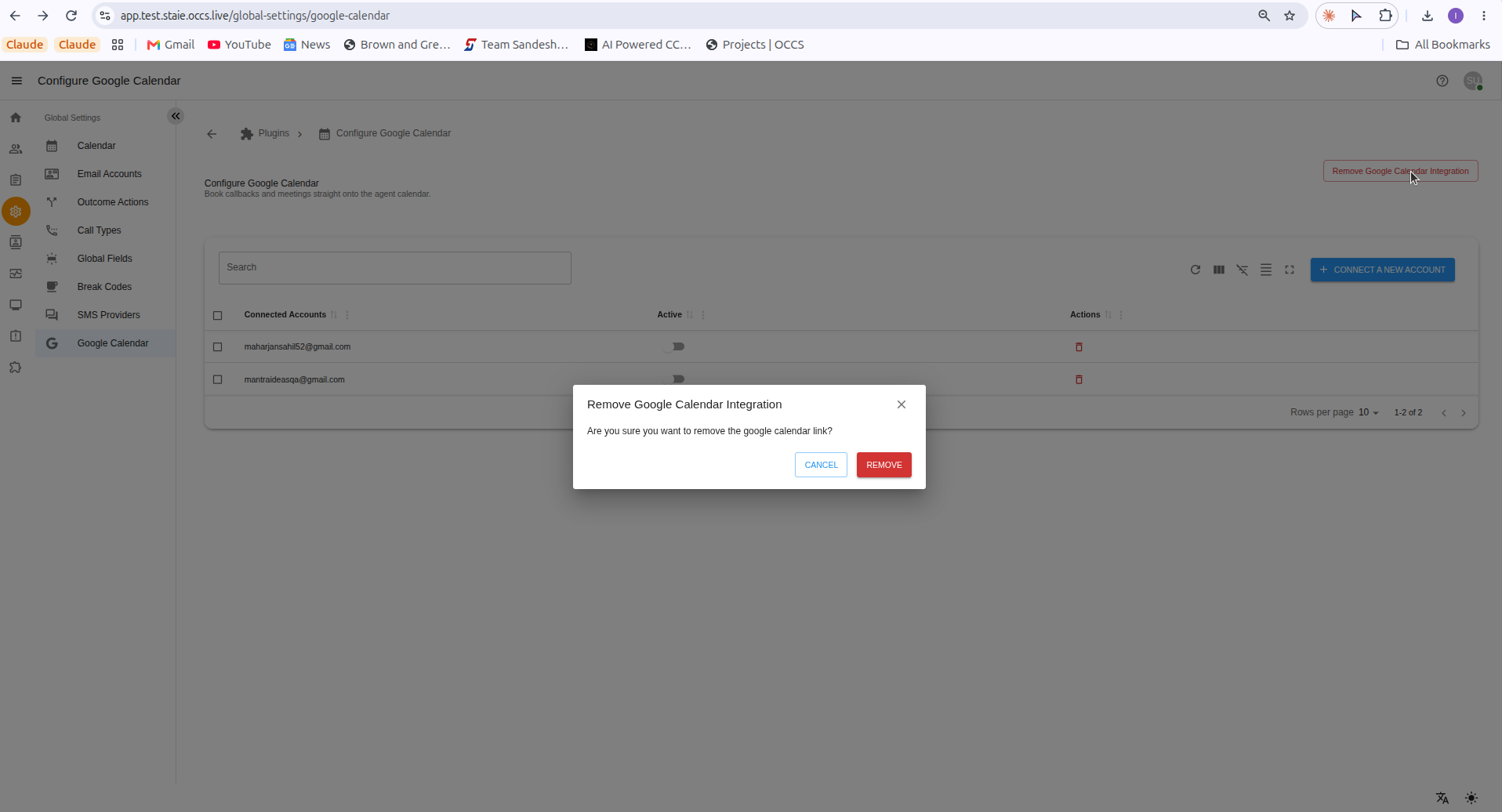
|