Google Calendar
1. Overview
Within a project, the Google Calendar screen lets you link a Google Calendar to that project, define the event title used when a meeting is booked, and set the meeting durations agents can choose from. It relies on the Google Calendar plugin being configured globally first.
2. Prerequisites
Before setting up the Google Calendar template in a project, make sure that:
-
You are logged in as Super Admin.
-
The Google Calendar plugin is imported and enabled (see Plugins).
-
Google Calendar under Global Settings is configured and enabled (see Google Calendar).
3. Steps to Set Up the Calendar Template in a Project
Step 1: Select a Project
Go to Project Management > Projects, then select the desired project from the list.
Step 2: Open Google Calendar
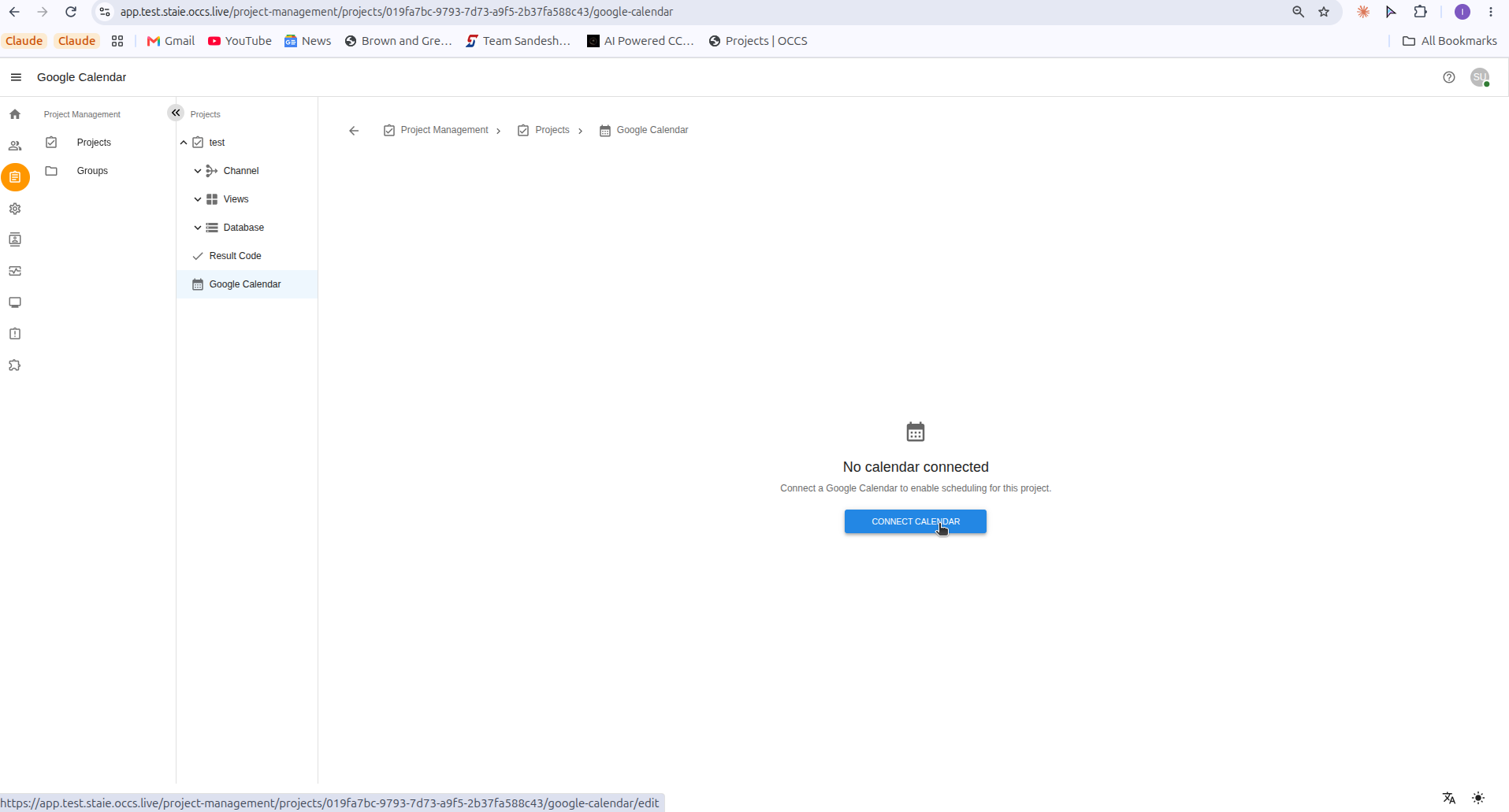
In the selected project’s side menu, click Google Calendar near the bottom of the left panel.
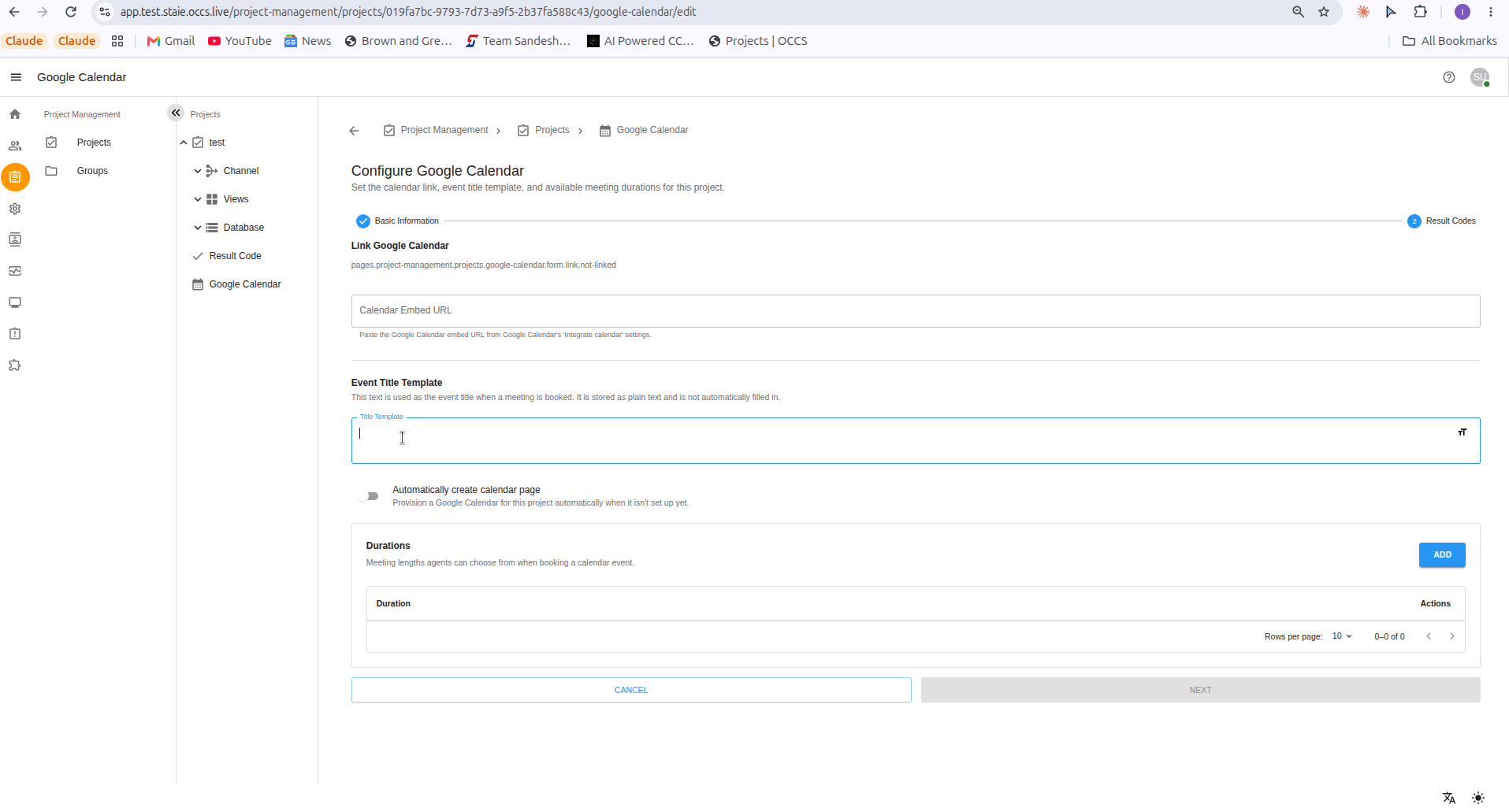
Step 4: Fill In the Form
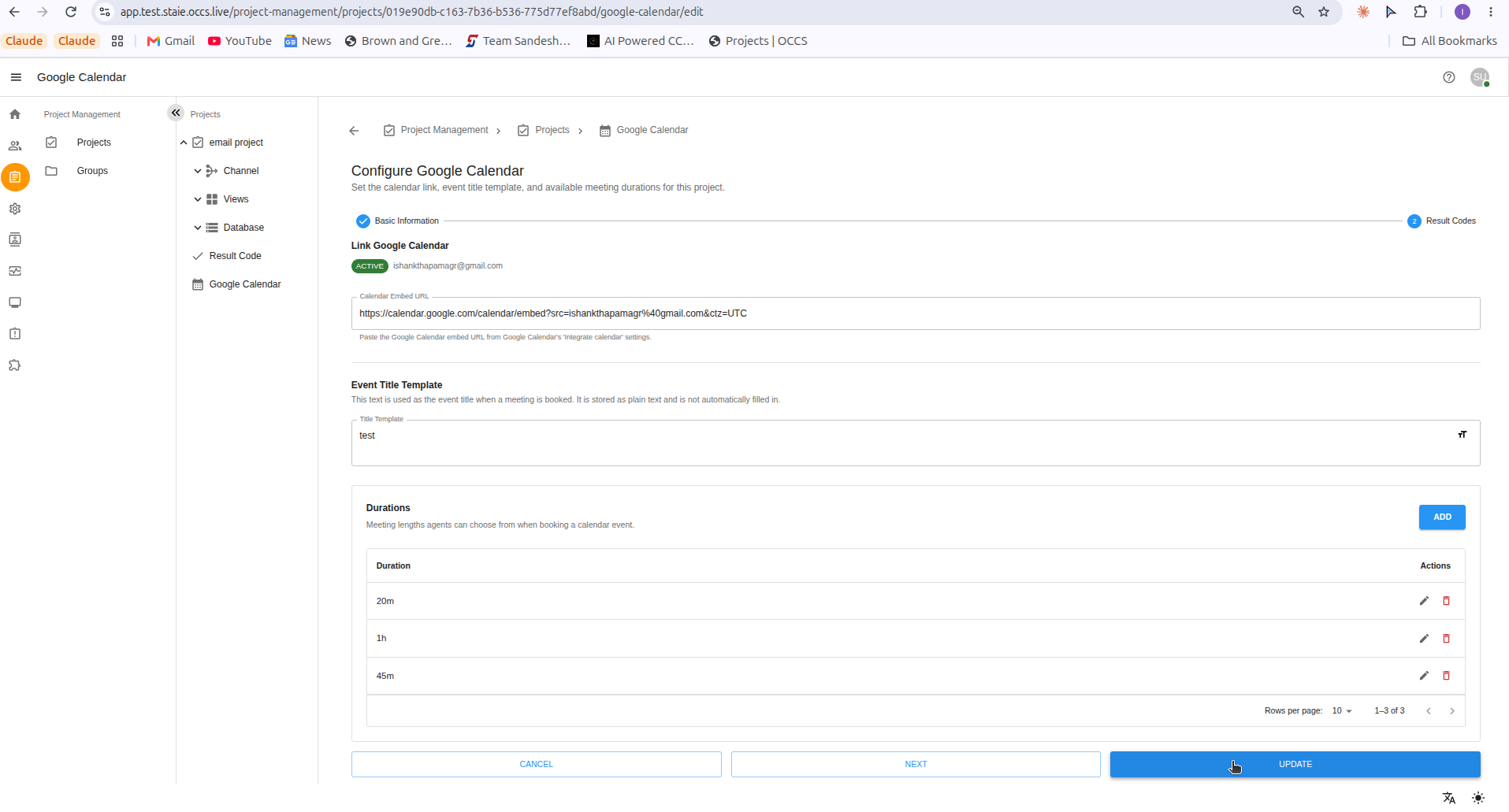
Complete the Basic Information step:
| Field | Description |
|---|---|
Calendar Embed URL |
The Google Calendar embed URL for the calendar to link. To find it: in Google Calendar, go to My calendars(You must already have a calendar), click the triple-dot menu next to the calendar, choose Settings and sharing, scroll down to Integrate calendar, then copy the Public URL to this calendar and paste it into this field. |
Event Title Template |
The text used as the event title when a meeting is booked. It is stored as plain text and is not automatically filled in. |
Automatically create calendar page |
If the Automatically create calendar page toggle is enabled, OCCS automatically creates a Google Calendar view/form (referred to as a View Page) for the project the first time a calendar isn’t already set up — you don’t need to build one manually. |
Durations |
The meeting lengths agents can choose from when booking a calendar event. Click ADD to add a duration. |
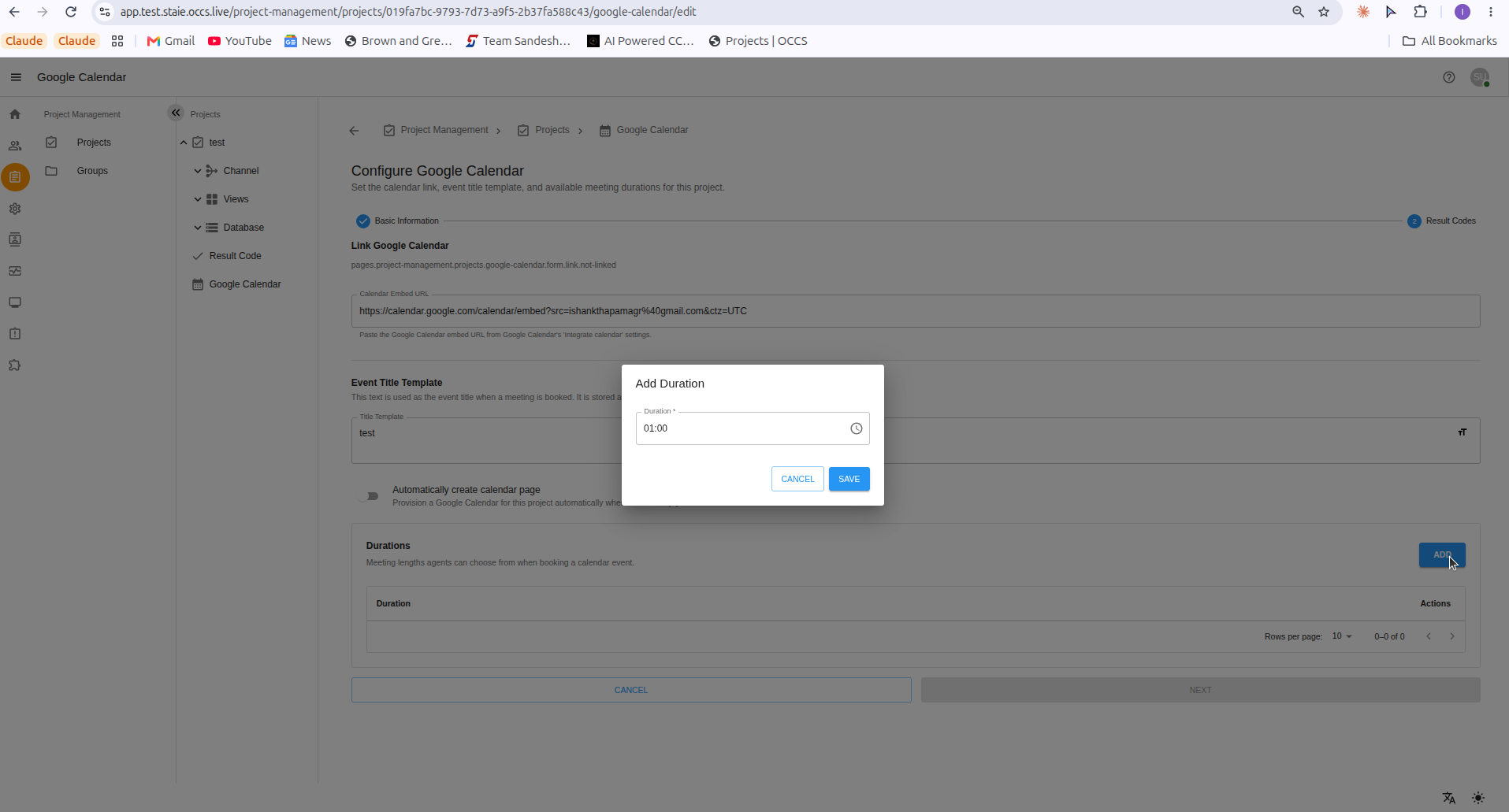
When adding a duration, enter the length and click SAVE.
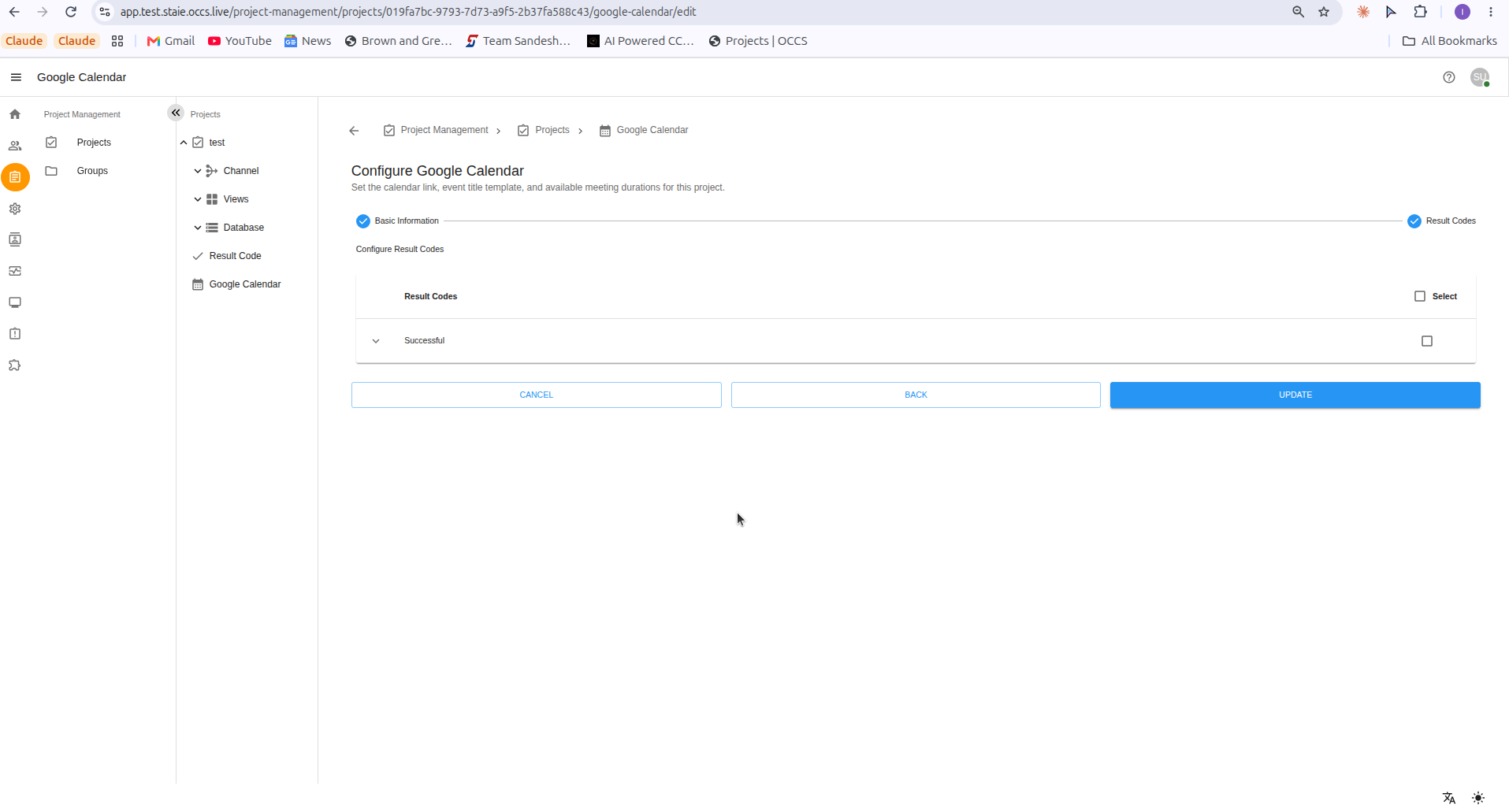
Click NEXT to continue.
4. Editing the Calendar Template
-
Click the edit (pencil) icon on the item you want to change — for example, a duration in the list.
-
Update the fields as needed.
-
Click UPDATE to save and apply the changes, or CANCEL to discard them and leave the configuration unchanged.
5. Adding a Google Calendar Block to a Form (Maske)
A Google Calendar block can also be added manually to any project form (maske):
-
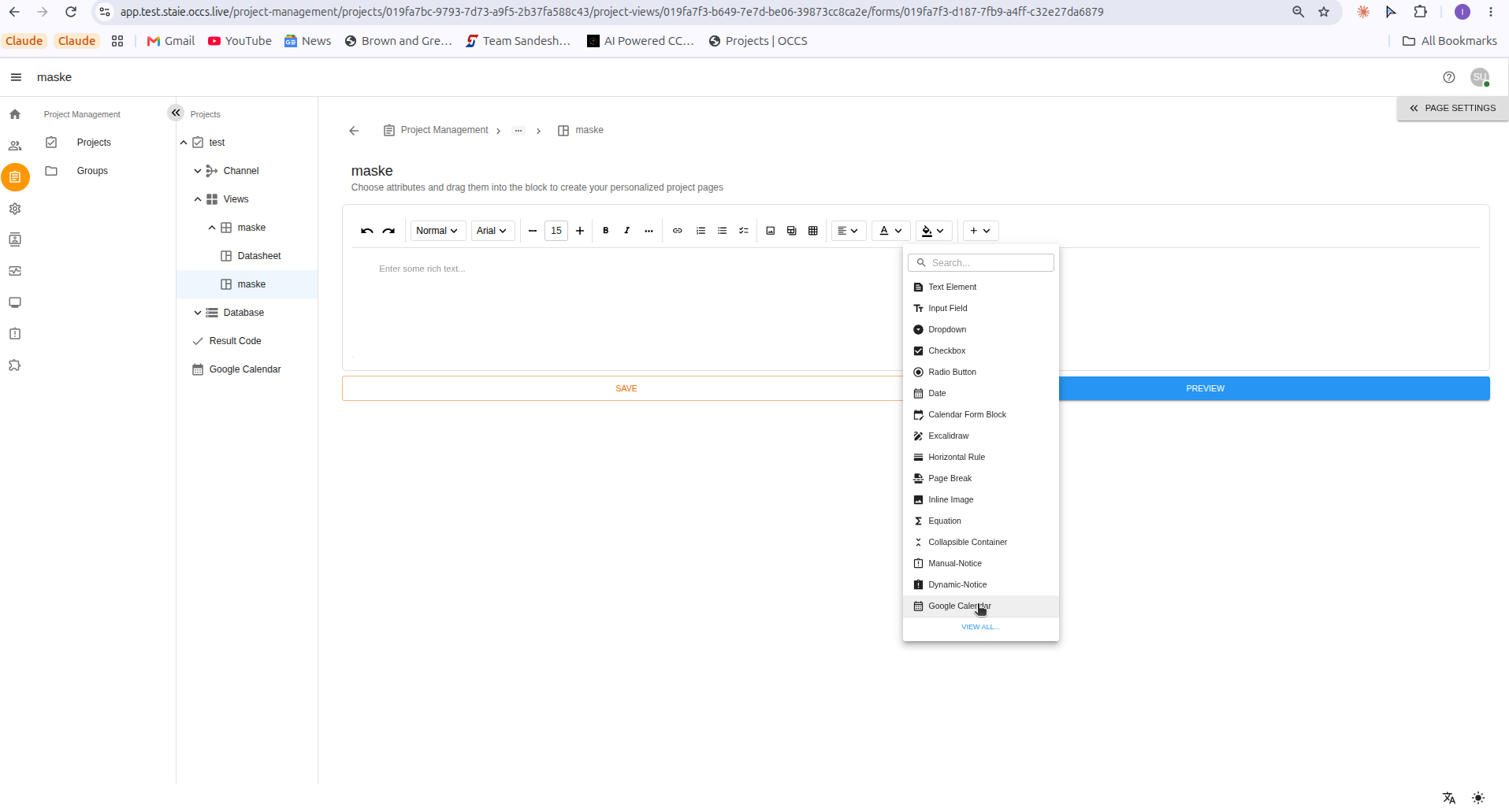
Open the form under Views, and click + in the toolbar to open the block/attribute dropdown.
-
Select Google Calendar from the list.
-
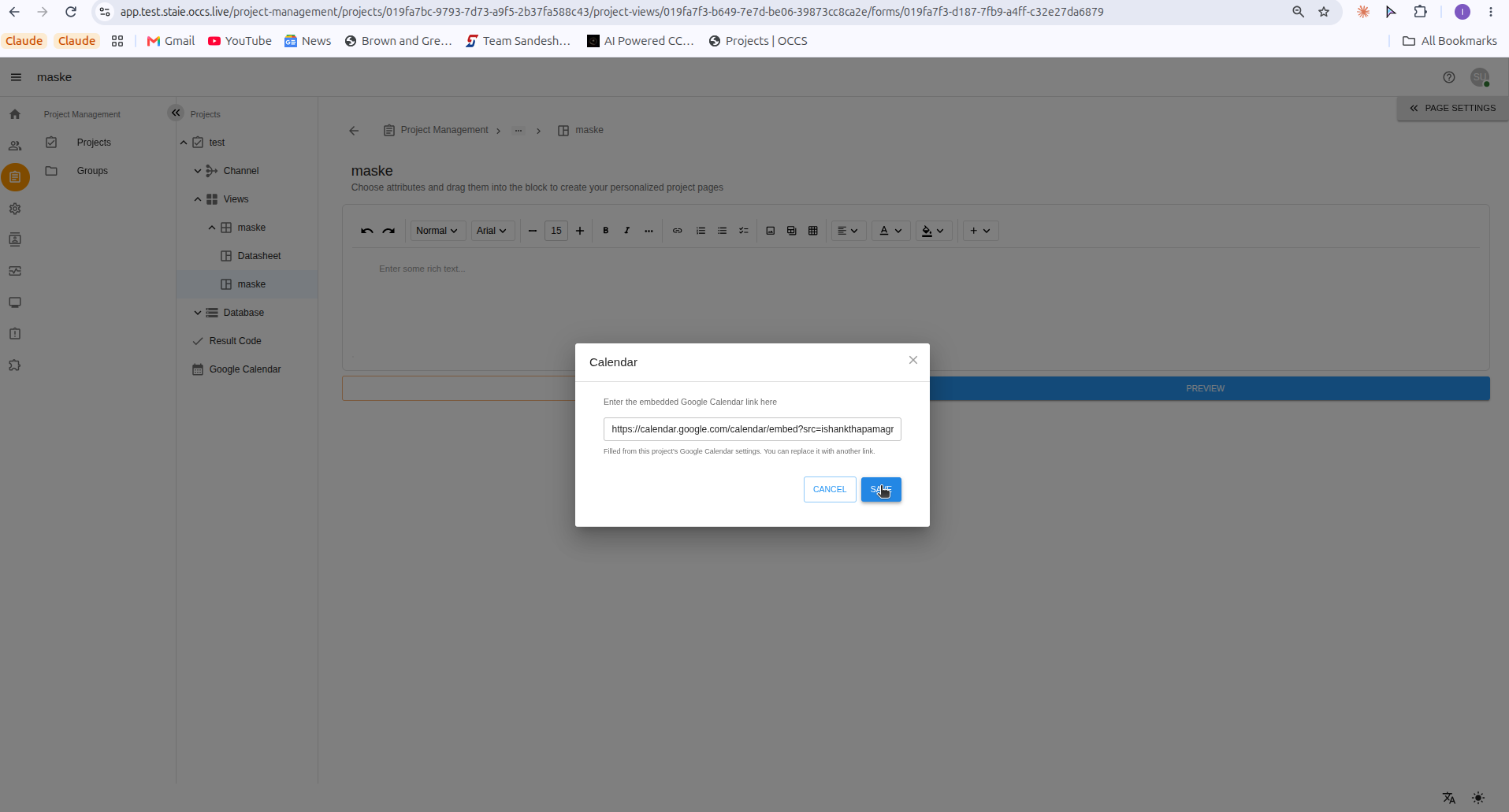
In the Calendar dialog, the embedded Google Calendar link is pre-filled from the project’s Google Calendar settings. You can replace it with another link if needed, then click SAVE.