SMS Provider
1. Overview
An SMS Provider is a third-party SMS gateway configuration that enables OCCS to send SMS messages. It stores the provider’s authentication details, API endpoint, HTTP request settings, and field mappings required to communicate with the SMS service.
SMS Providers are managed from Global Settings and are used by the Plugins to actually deliver SMS messages.
2. Prerequisites
Before adding an SMS Provider, make sure that:
-
You are logged in as Super Admin.
-
The Plugins has been imported and enabled.
3. Steps to Add an SMS Provider
-
Open Global Settings.
Click Global Settings (gear icon) on the left-hand side of the Super Admin dashboard.
-
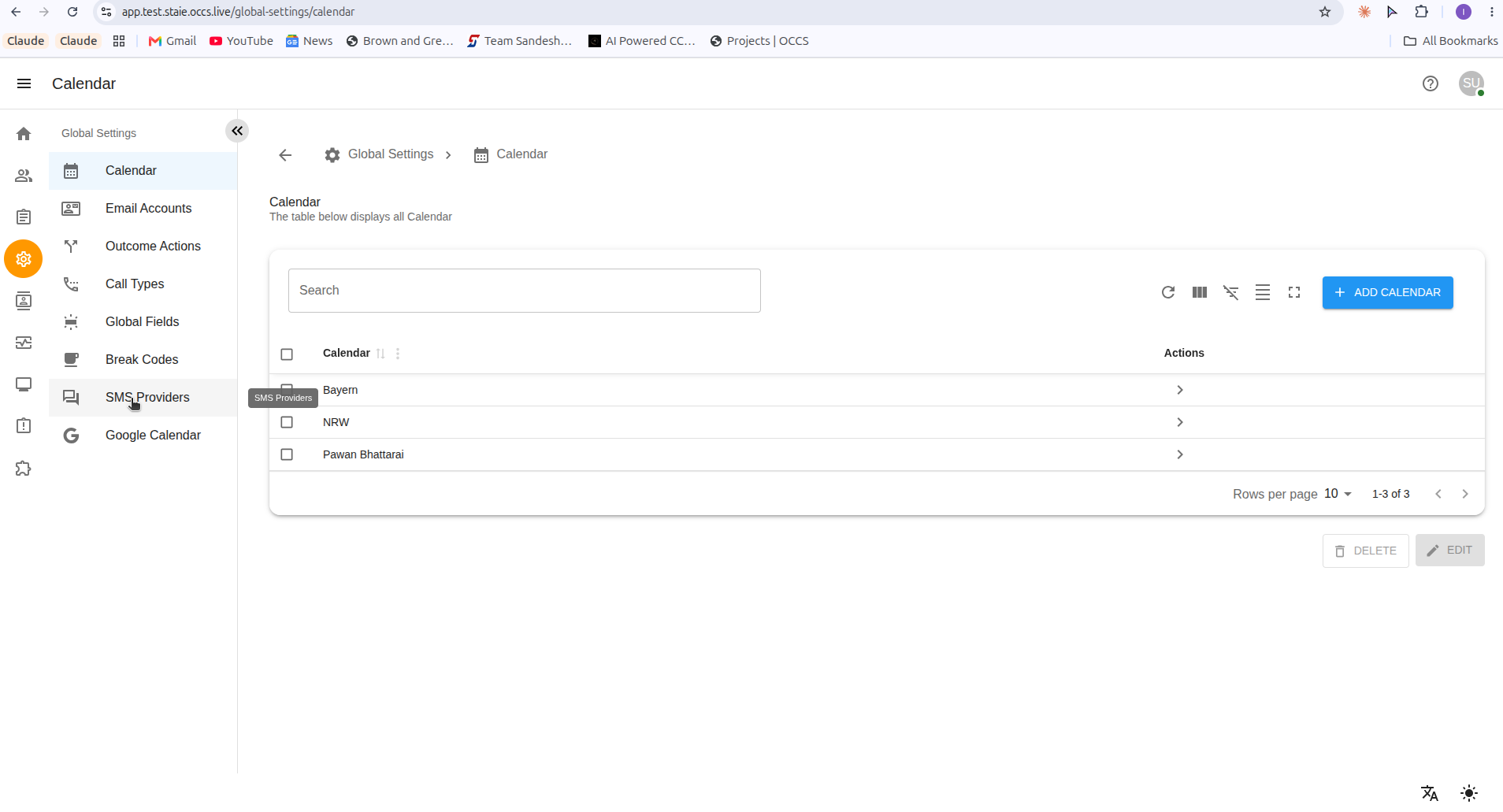
Open SMS Providers.
Click SMS Providers in the Global Settings menu.
-
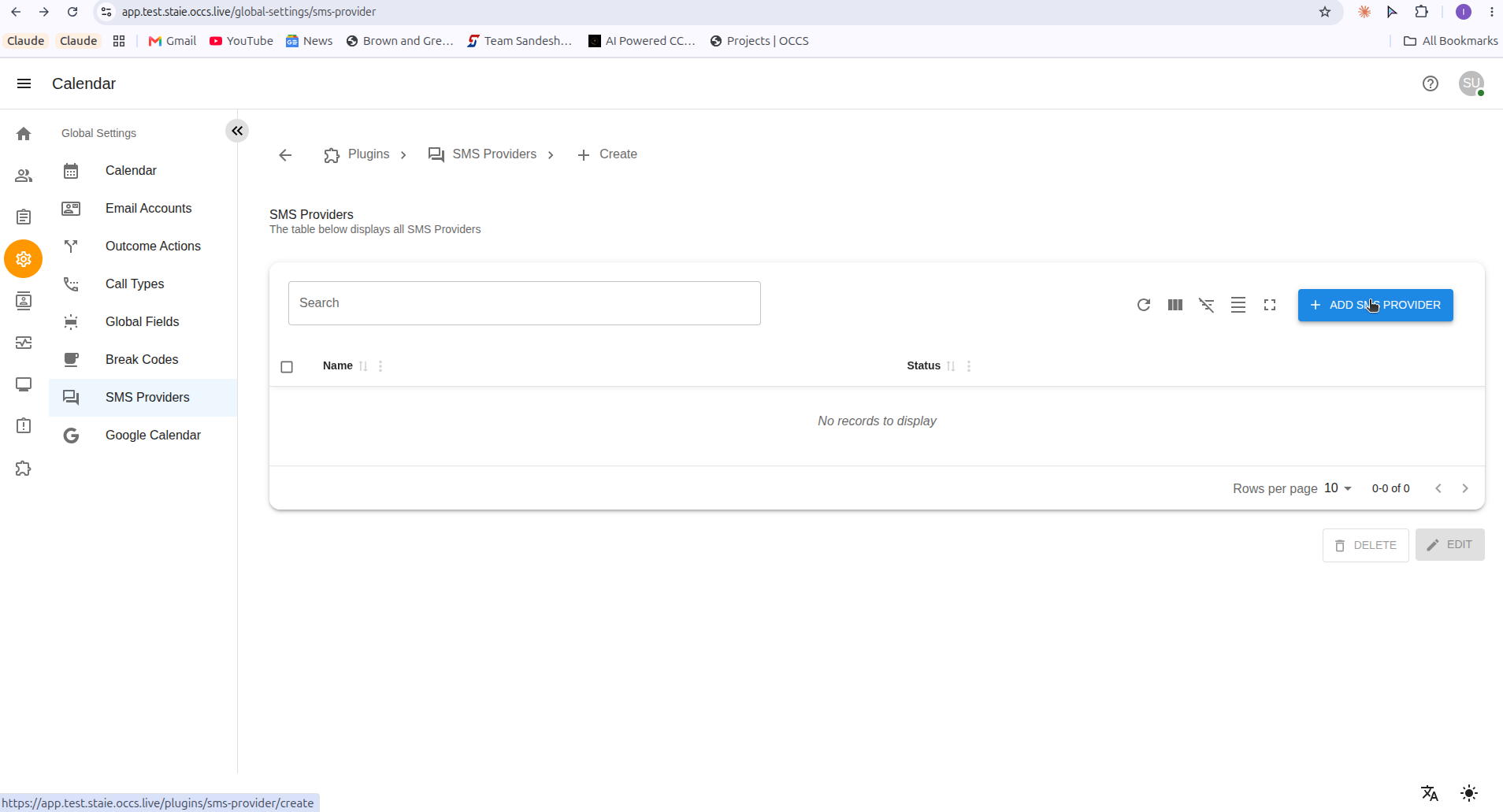
Add a new provider.
Click + ADD SMS PROVIDER in the top right corner.
-
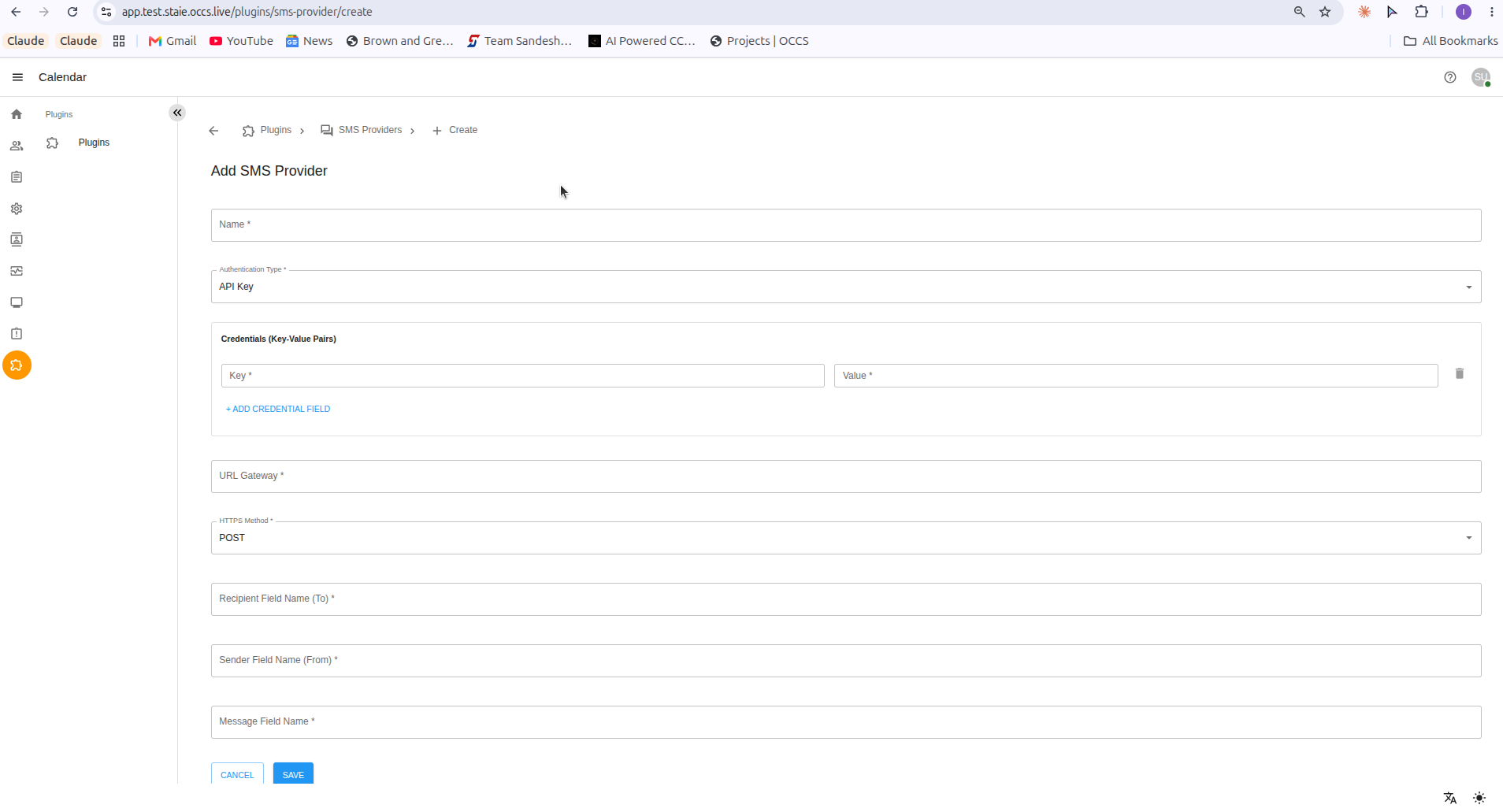
Fill in the SMS Provider form.
Complete the fields described below, then click SAVE to create the provider, or CANCEL to discard the changes without saving.
4. SMS Provider Form Fields
| Field | Description |
|---|---|
Name |
A label used to identify this SMS Provider in OCCS. |
Authentication Type |
The authentication method used to connect to the provider’s API, for example API Key. |
Credentials (Key-Value Pairs) |
The authentication credentials required by the provider, entered as one or more Key / Value pairs (for example, an API key name and its value). Use + ADD CREDENTIAL FIELD to add additional pairs if the provider requires more than one credential. |
URL Gateway |
The API endpoint (URL) that OCCS sends SMS requests to. |
HTTPS Method |
The HTTP method used when calling the provider’s API, for example POST. |
Recipient Field Name (To) |
The name of the request field the provider expects to contain the recipient’s number. |
Sender Field Name (From) |
The name of the request field the provider expects to contain the sender identity/number. |
Message Field Name |
The name of the request field the provider expects to contain the SMS message body. |
5. Activating a Provider
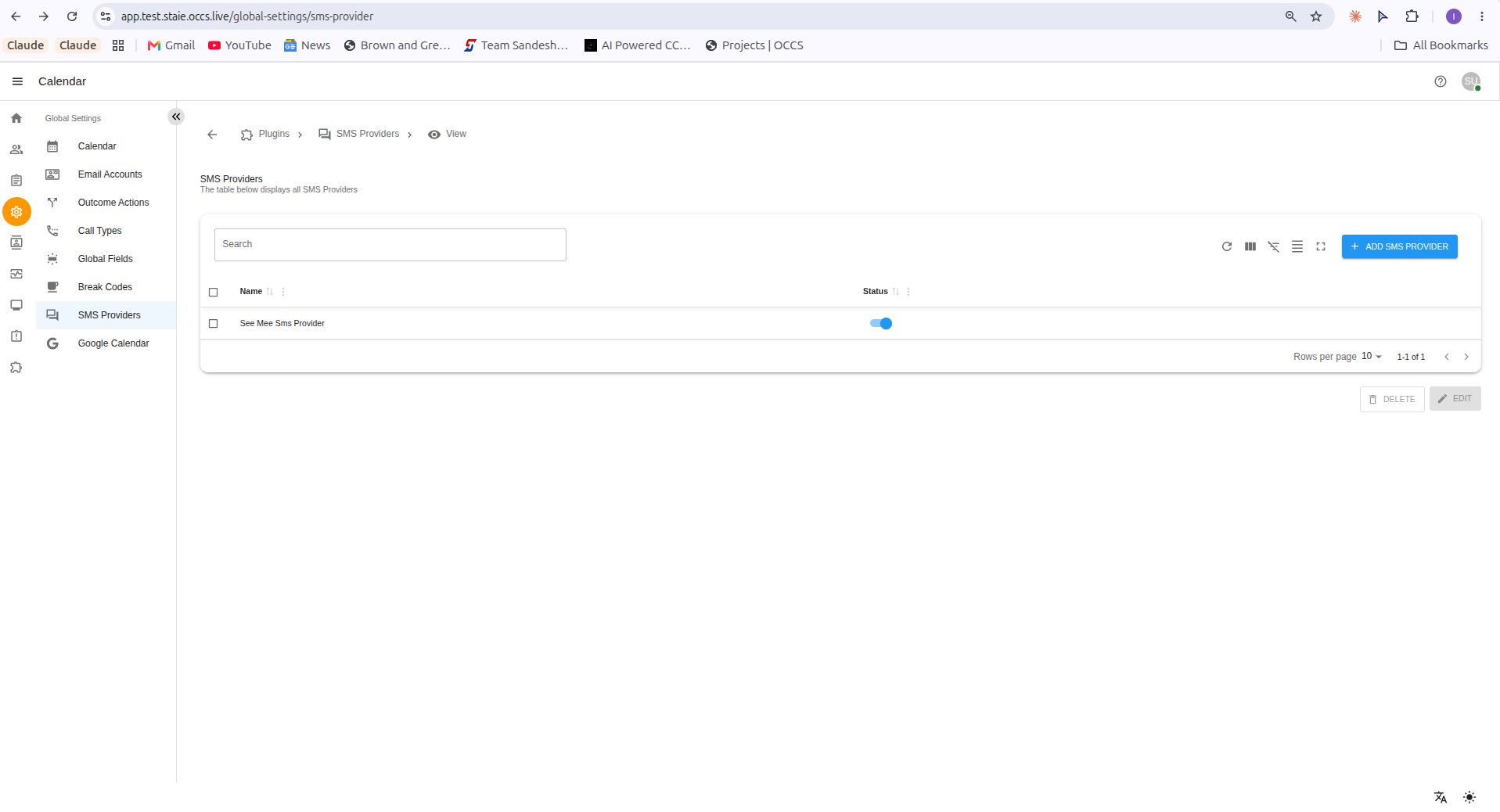
Once created, an SMS Provider can be switched on or off using the Status toggle on the SMS Providers list.
|
If there are multiple SMS Providers configured, only one provider can be active at a time. Turning on the status toggle for one provider automatically means only that provider is used — multiple providers cannot be active simultaneously. |
6. Editing an SMS Provider
-
Select the checkbox next to the SMS Provider you want to edit.
-
Click EDIT.
-
Update the fields as needed.
-
Click UPDATE to save and apply the changes, or CANCEL to discard them and leave the provider unchanged.
7. Deleting an SMS Provider
-
Select the checkbox next to the SMS Provider you want to delete.
-
Click DELETE.
-
Confirm the deletion when prompted.
|