SMS Template
1. Overview
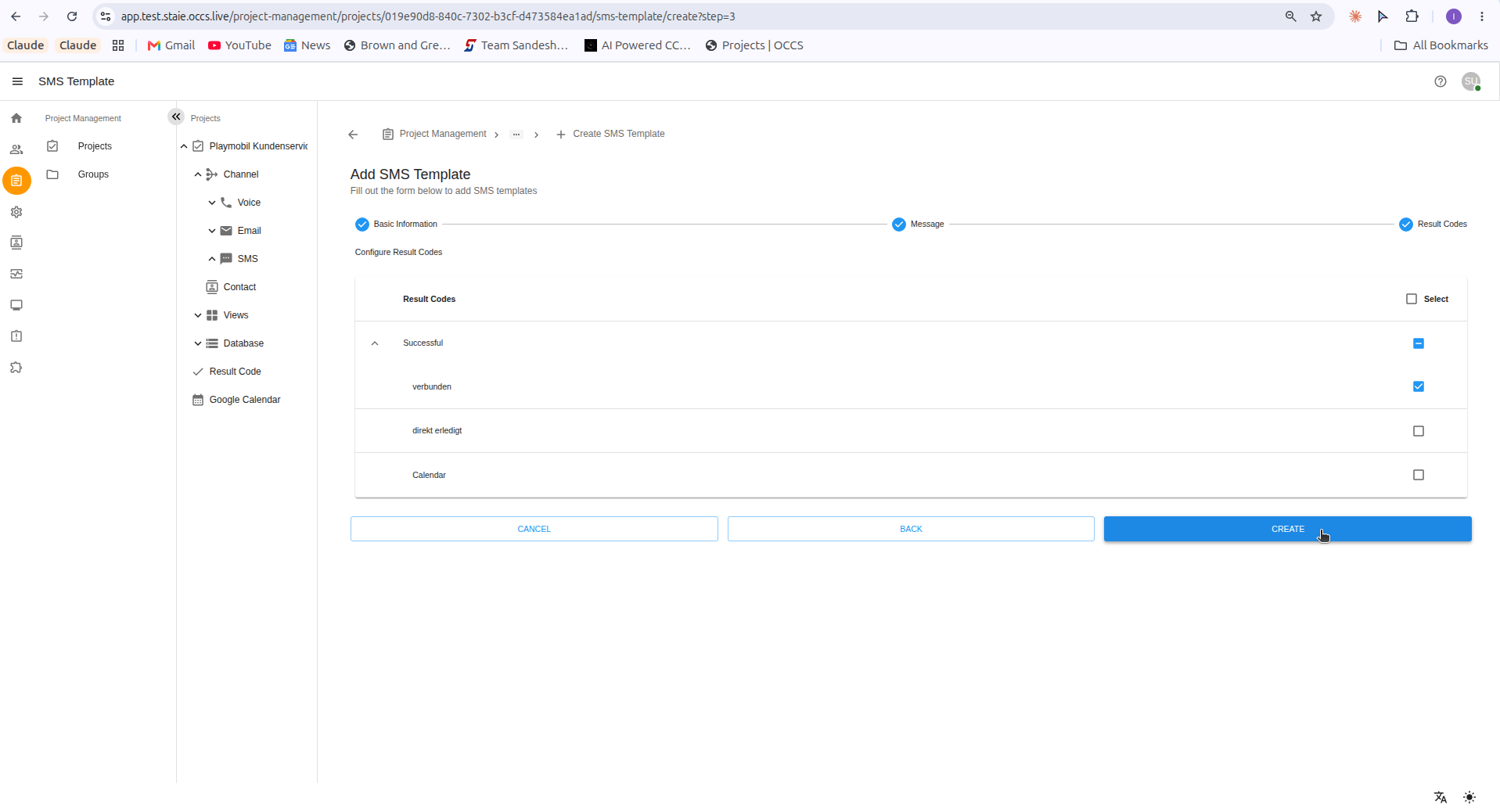
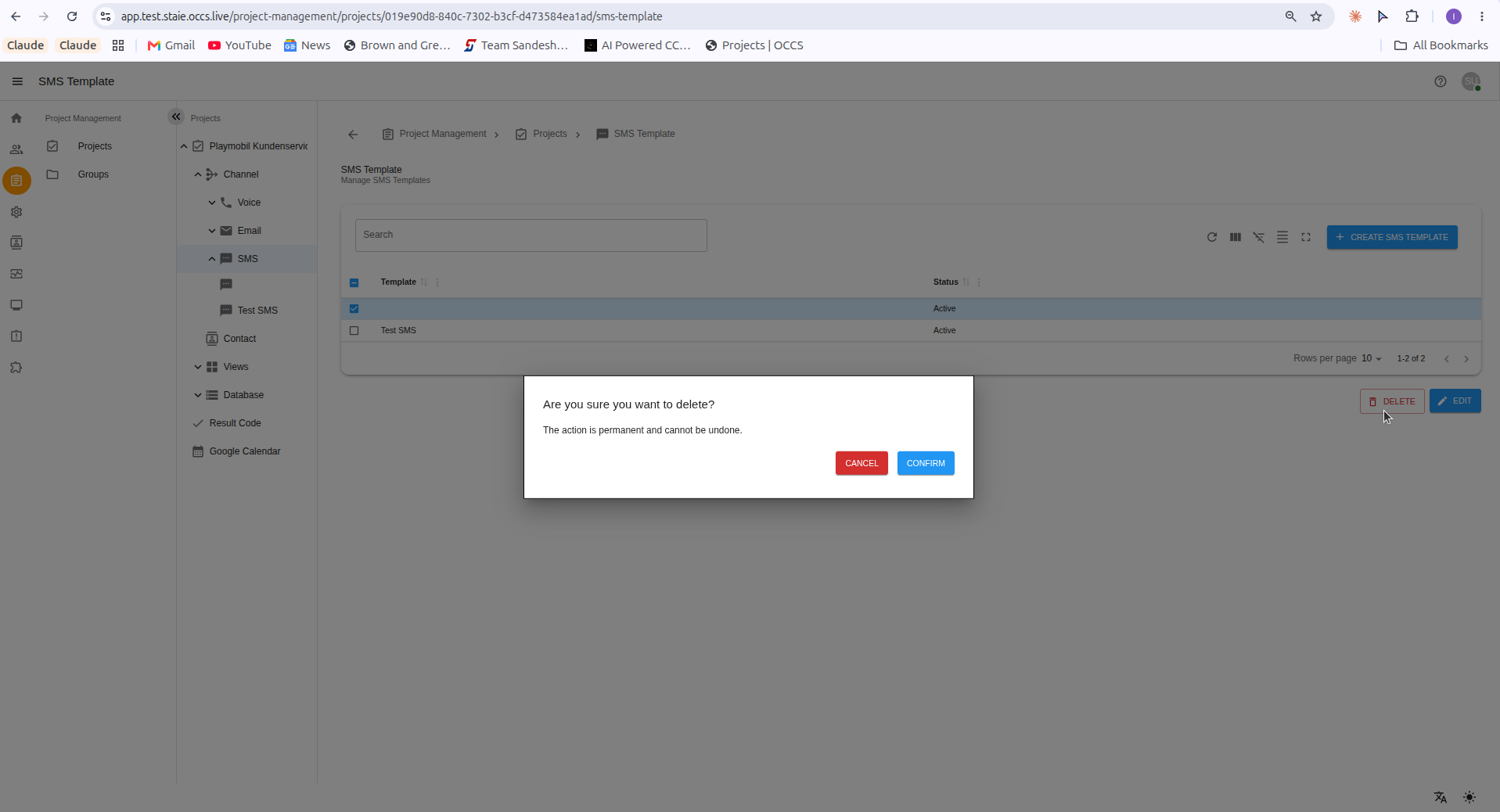
SMS Templates are reusable message formats used to send consistent SMS notifications from OCCS. They include the SMS message content, sender and recipient information, and optional trigger result codes. Users can create, edit, or delete templates, and insert dynamic data using predefined CDR variables that are replaced with actual values when the SMS is sent.
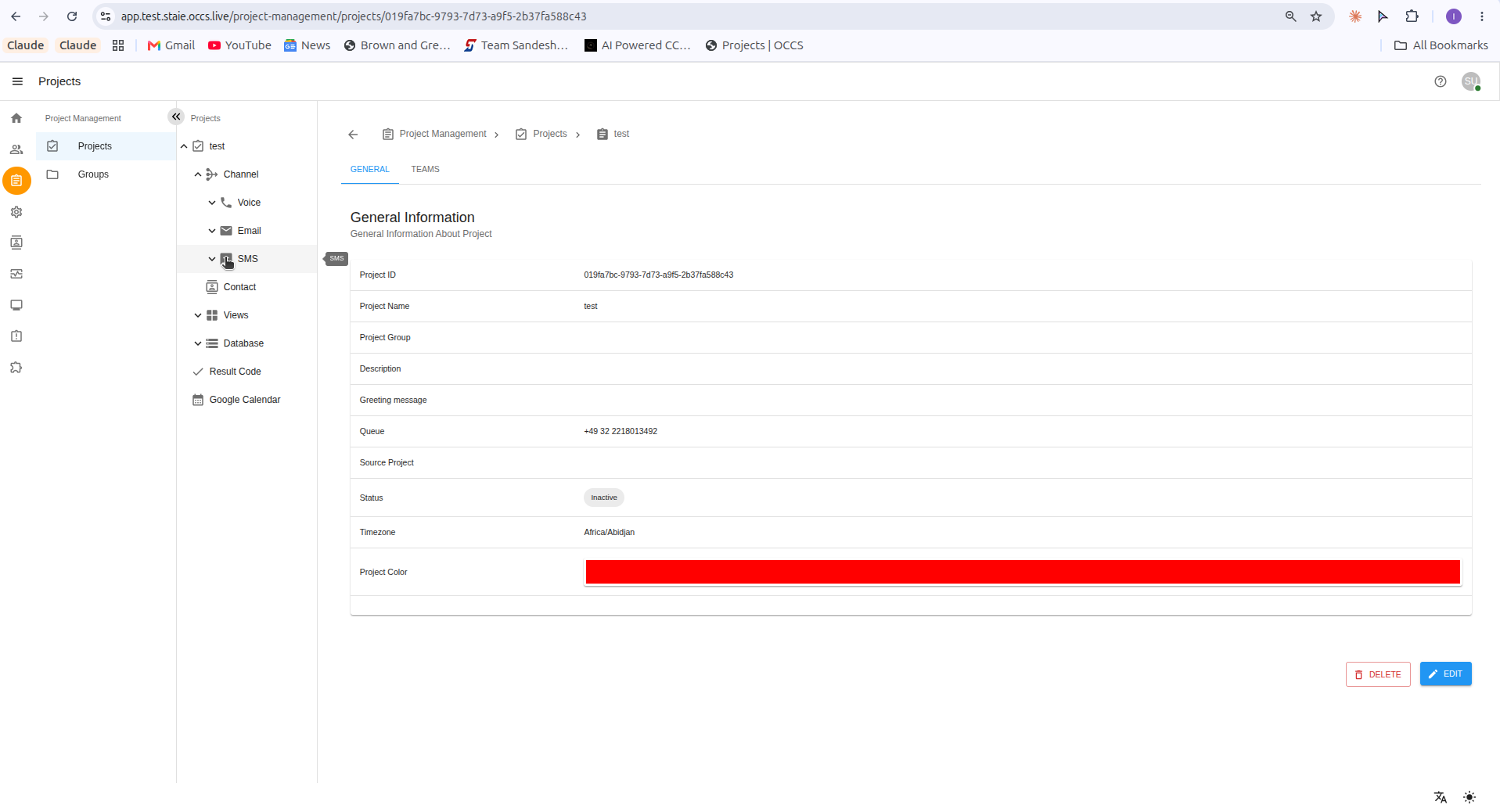
SMS Templates are configured per project, under that project’s SMS channel, and rely on the Plugin and Sms Provider being set up first.
2. Prerequisites
Before creating an SMS Template, make sure that:
-
You are logged in as Super Admin.
-
The Plugin is enabled.
-
An Sms Provider is set and enabled.
3. Steps to Add an SMS Template
Step 1: Select a Project
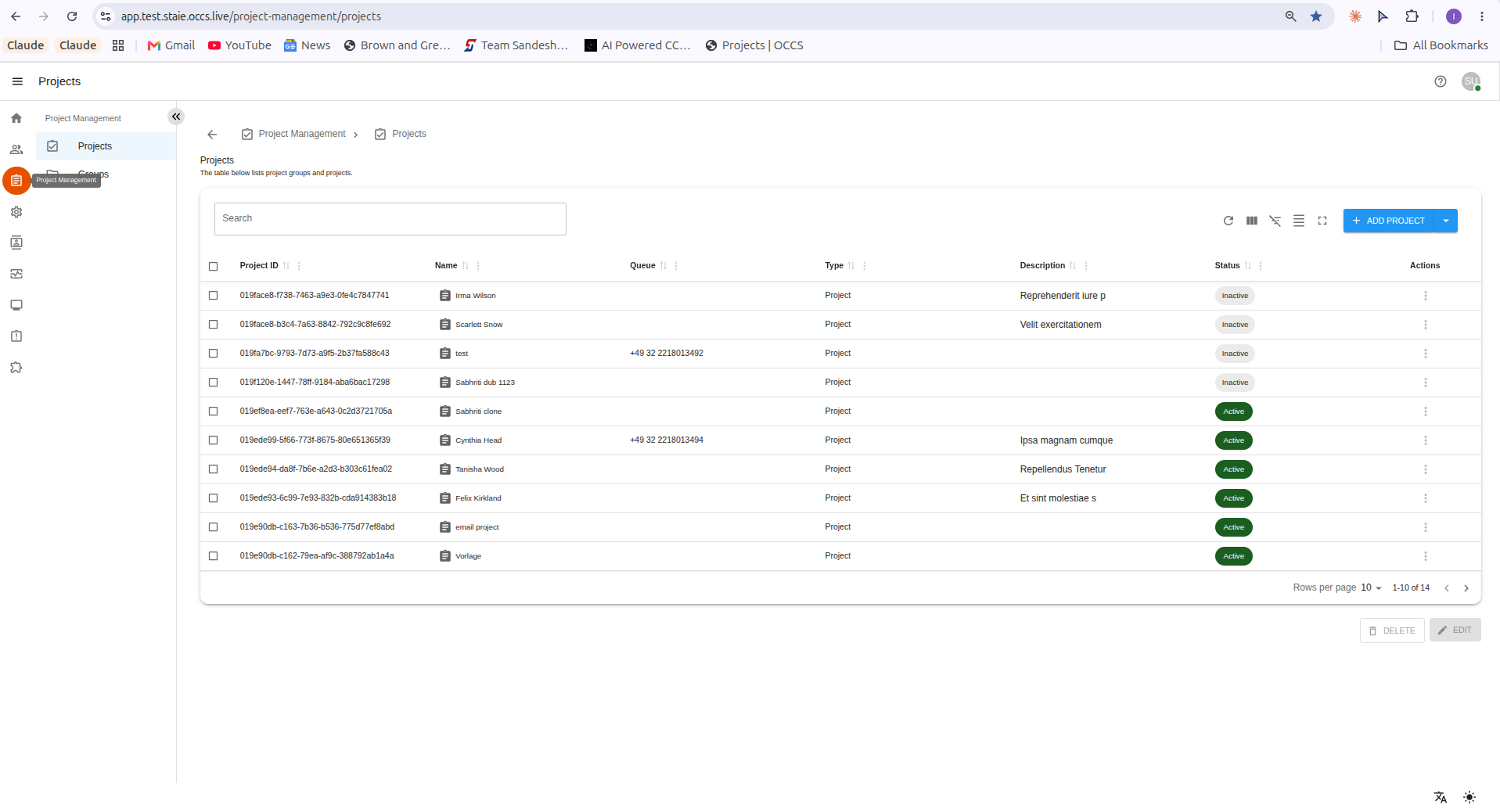
Click Project Management > Projects, then select the desired project from the list.
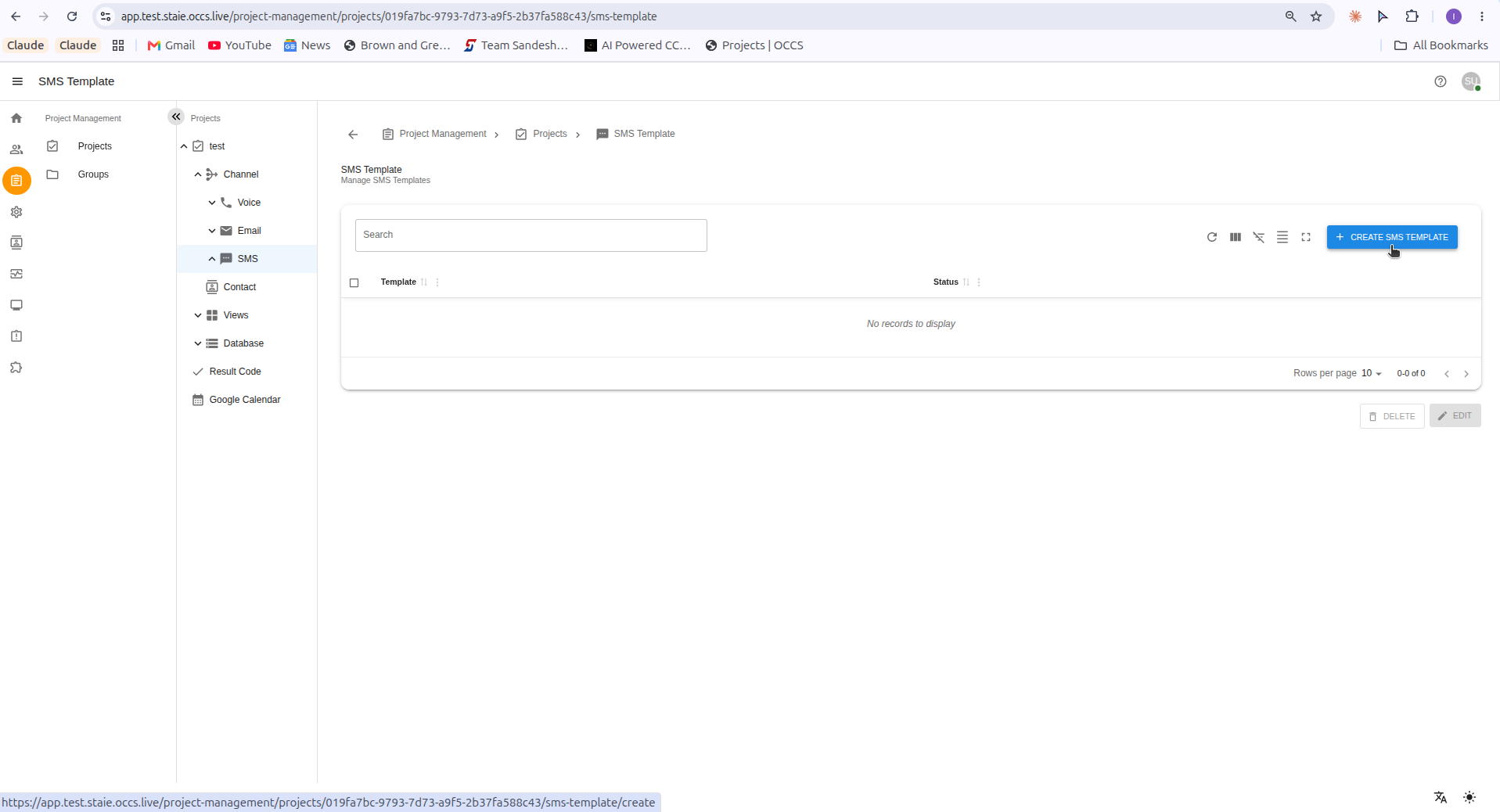
Step 4: Fill in Basic Information
Complete the Basic Information step of the form:
| Field | Description |
|---|---|
Template Name |
A label used to identify this SMS Template. |
To |
The recipient(s) of the SMS. Add phone numbers separated by commas, or insert a dynamic value from a CDR field using curly braces, e.g. |
Sender |
The sender number the SMS is sent from. This field only accepts integer values. |
Active |
Toggle to enable or disable the template. |
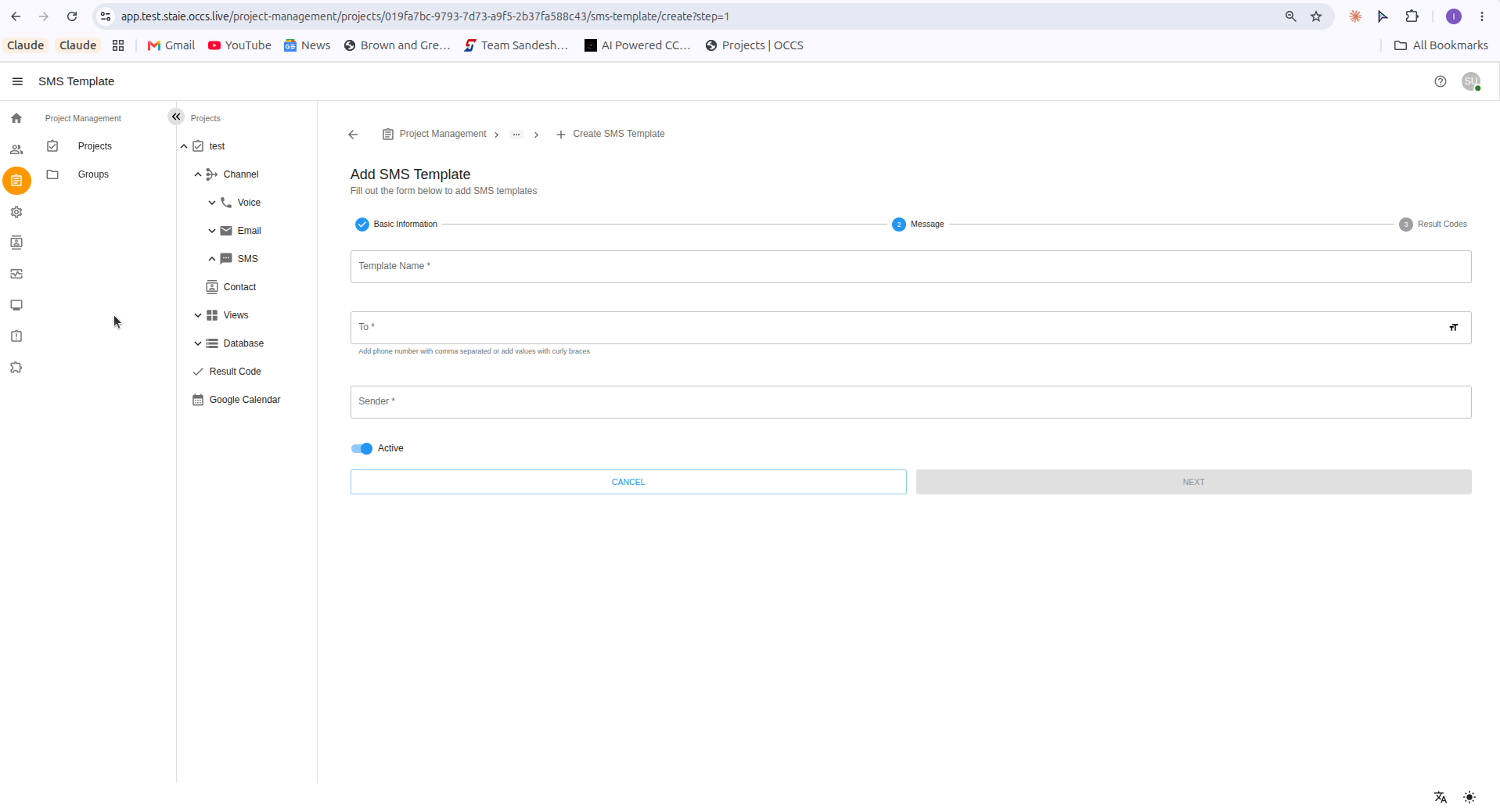
Click NEXT to continue.
Step 5: Enter the Message
Enter the SMS message content in the Message field. Click the field-insert icon or type {variable} to insert dynamic CDR fields into the message.
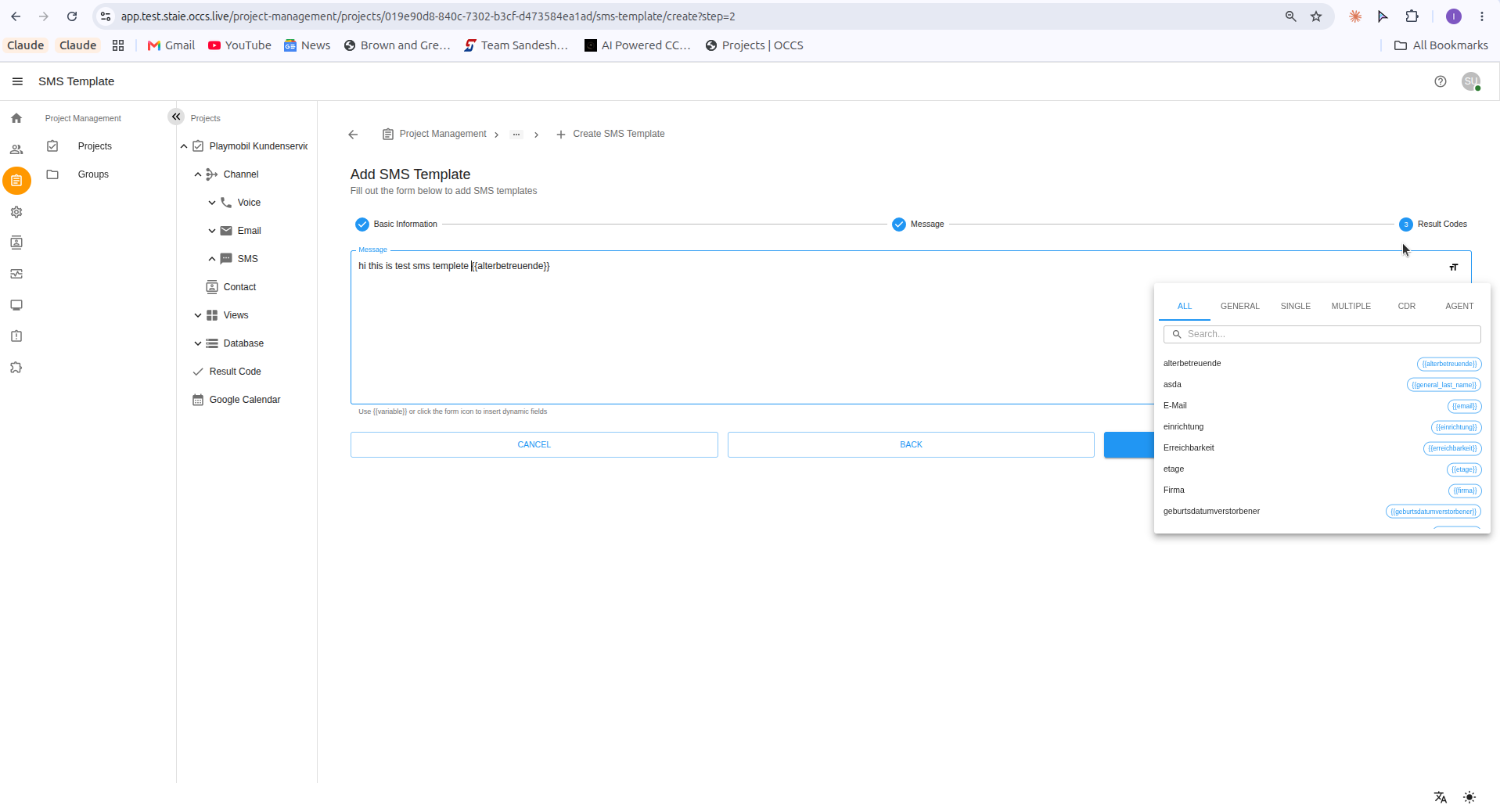
|
Click NEXT to continue.